
Availability & Google Calendar
Every team member who takes meetings has their own working hours. Booking pages only offer times inside them.
Set your hours
Section titled “Set your hours”Go to Appointments → Booking Pages and click My availability. Team members who don’t use app.wylto.com can do the same from the inbox app: inbox.wylto.com → Settings → My Availability.
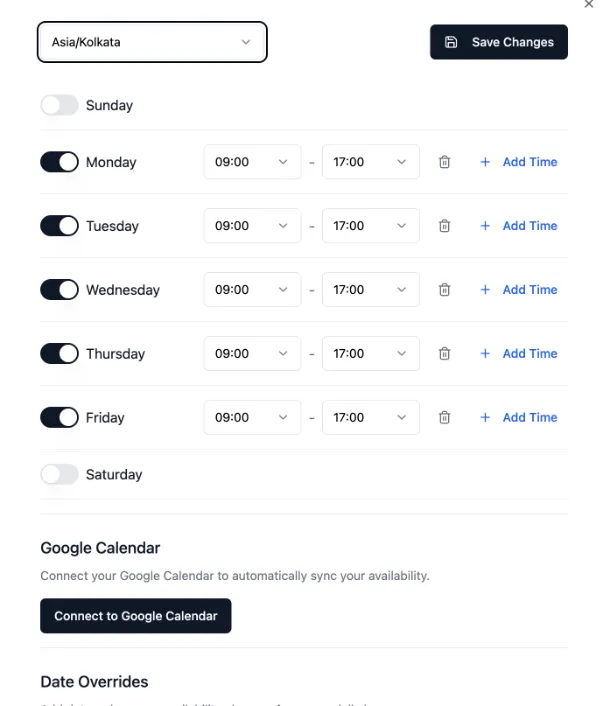
- Pick your timezone first. Hours are in that timezone, and customers see them converted to theirs.
- Turn days on or off and set hours. Add Time adds a second range for a split day.
- Date Overrides change a single date: different hours, or none for a day off.
- Click Save Changes.
Google Calendar (optional)
Section titled “Google Calendar (optional)”You don’t need a calendar connected to take bookings. Without one, free times are your working hours minus the bookings already in Wylto.
Connect Google Calendar from the same panel with Connect to Google Calendar if you also want Wylto to:
- skip times that are busy in your calendar, including meetings booked outside Wylto,
- add each booking to your calendar and send the customer an invite,
- create a Google Meet link for pages set to Google Meet.
Each member connects their own calendar. If a member on a Google Meet page has no calendar connected, their bookings use the page’s fallback meeting link instead.