
Create a booking page
Go to Appointments in the sidebar, open the Booking Pages tab and click New booking page. The editor has four steps.
-
Details
Section titled “Details”Give the page a name and a short description, pick how long the meeting is, and where it happens.
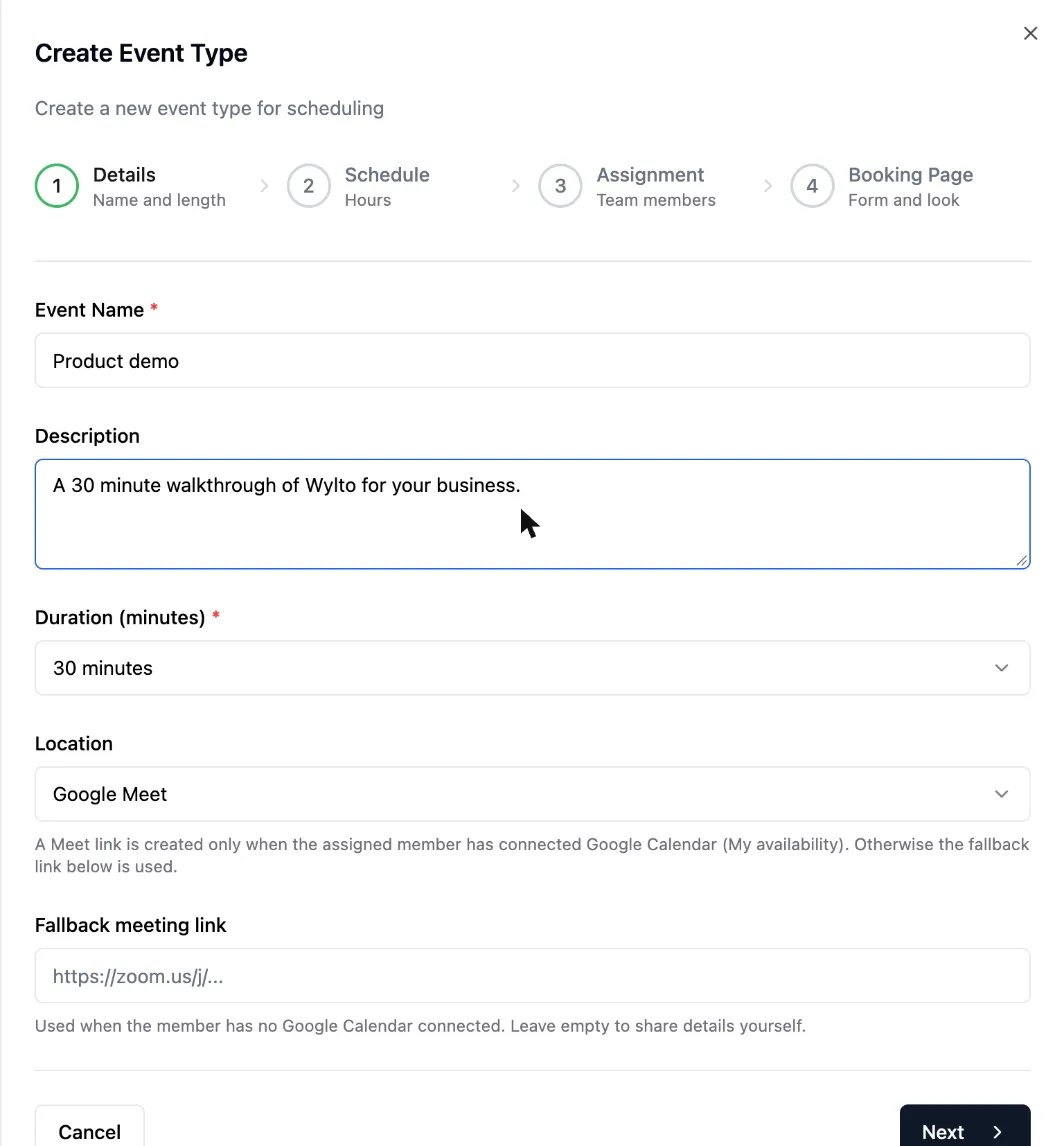
-
Schedule
Section titled “Schedule”The hours this page can be booked, for each day of the week. Turn a day off, or add a second set of hours with Add Hours for a split day.
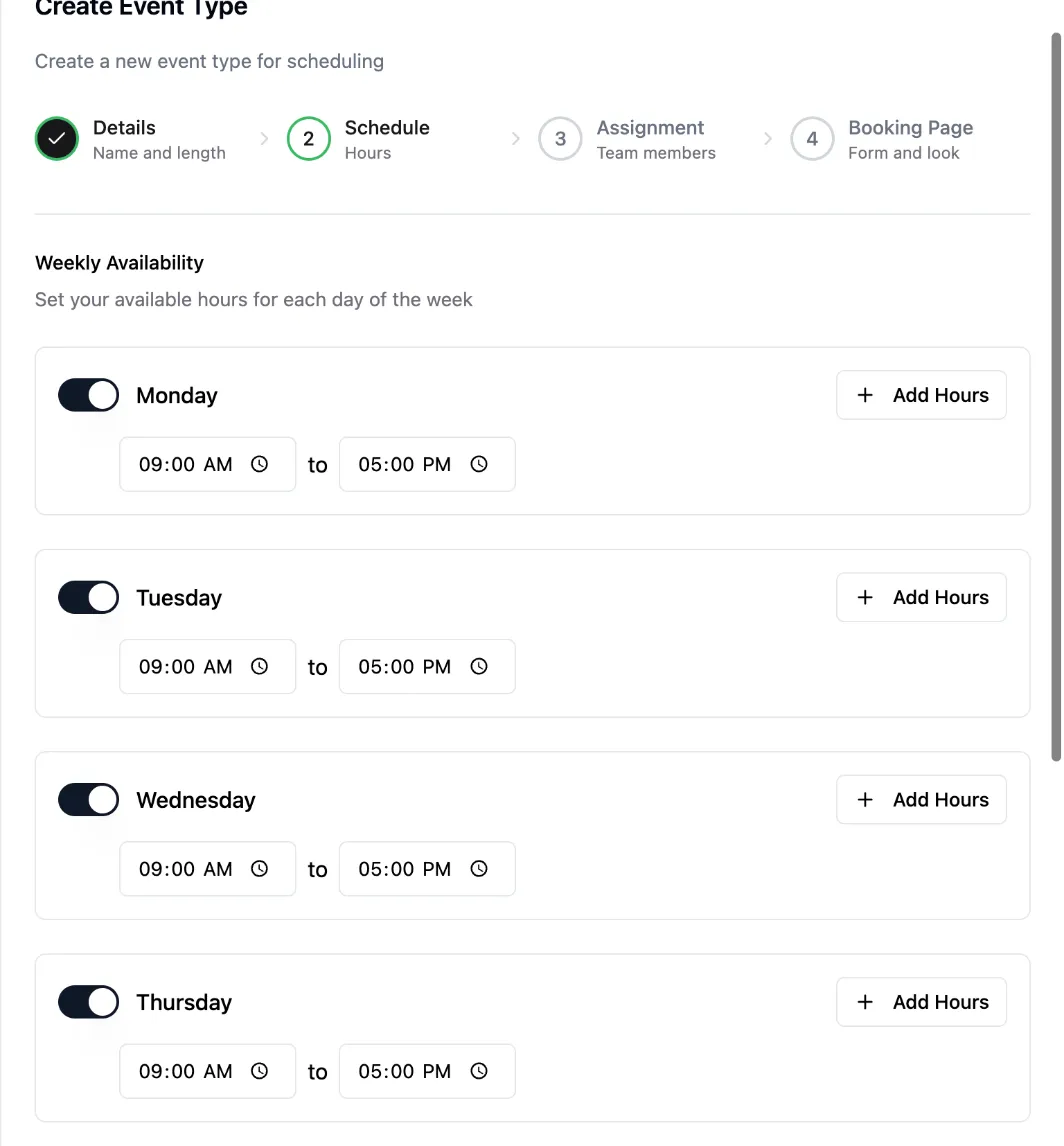
-
Assignment
Section titled “Assignment”Tick the team members who take these meetings. Bookings are shared round robin: each new booking goes to the free member with the fewest upcoming meetings.
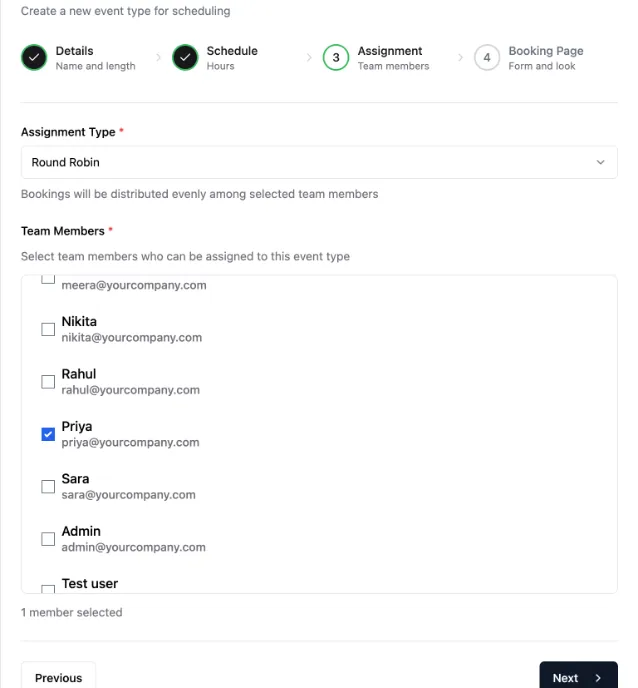
-
Booking Page
Section titled “Booking Page”Add your logo URL and brand colour, then choose what to ask. Name, email and phone are on and required by default. Add your own questions with Add Field, turn fields off, or drag to reorder.
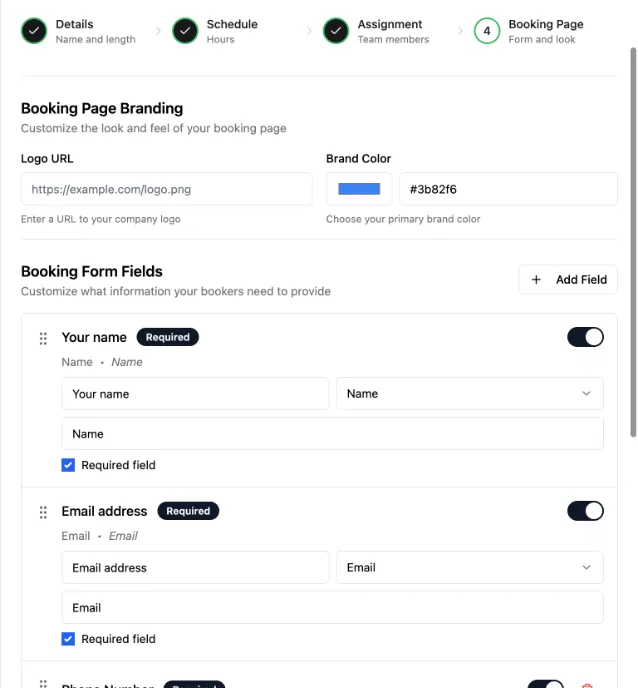
Click Create Event Type. The page is live straight away; copy its link from the Booking Pages tab.
Locations
Section titled “Locations”| Location | What the customer gets |
|---|---|
| Google Meet | A Meet link on the confirmation and in the calendar invite. Needs the assigned member to have Google Calendar connected; otherwise the Fallback meeting link is used. |
| Video call link (Zoom, Teams…) | The link you enter, shared after they book. |
| Phone call | A note that you will call them. Keep the phone field on so you have the number. |
| In person | The address you enter, shown on the page before they book. |