
Manage bookings
Every booking is saved on the contact who made it, and shows in Appointments → Events.
List and calendar
Section titled “List and calendar”The Events tab opens as a list grouped by day, with Upcoming, Past and Cancelled. Search by name, phone or booking page.
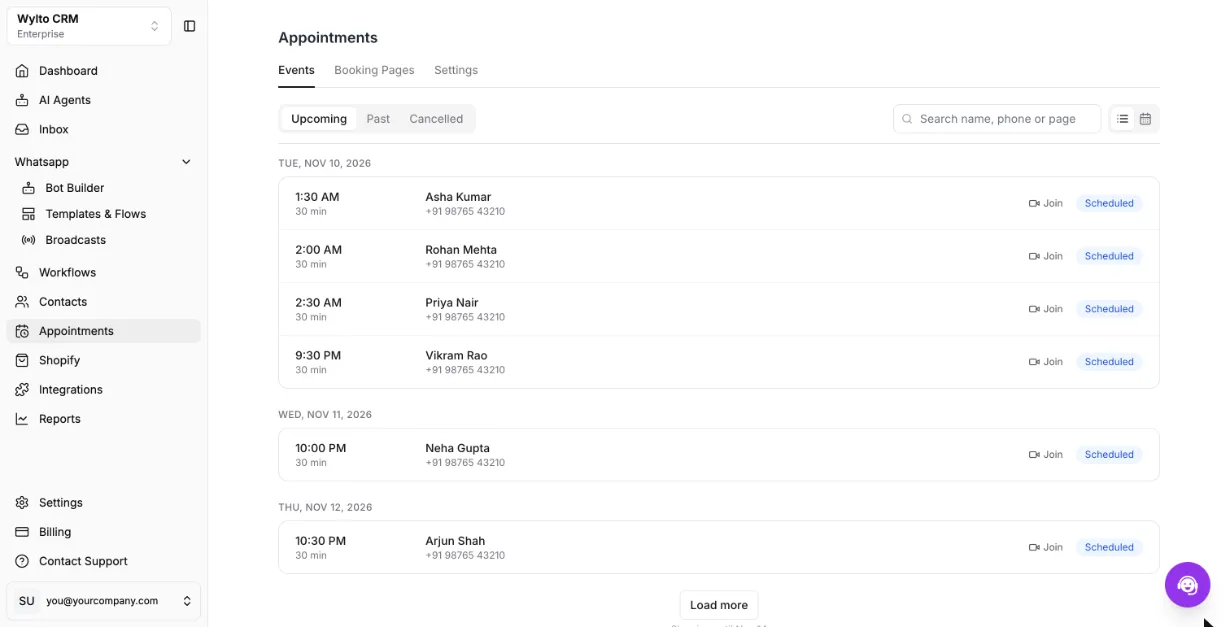
The list starts with last week and this week. Load more at the bottom adds a week: later ones on Upcoming, earlier ones on Past and Cancelled. The line under it says how far you have loaded.
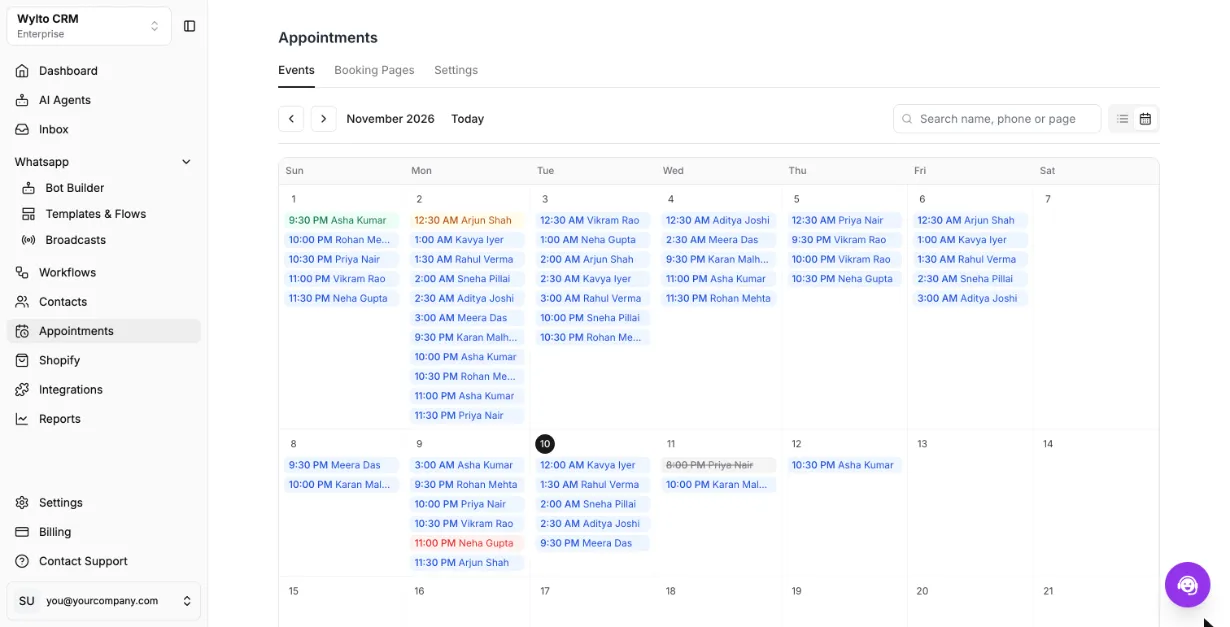
Use the icons at the top right to switch to the calendar. It shows a whole month; colours follow the status and cancelled bookings are struck through. Your choice is remembered on this browser.
Event details
Section titled “Event details”Click a booking in the list or calendar to open Event Details on the right.
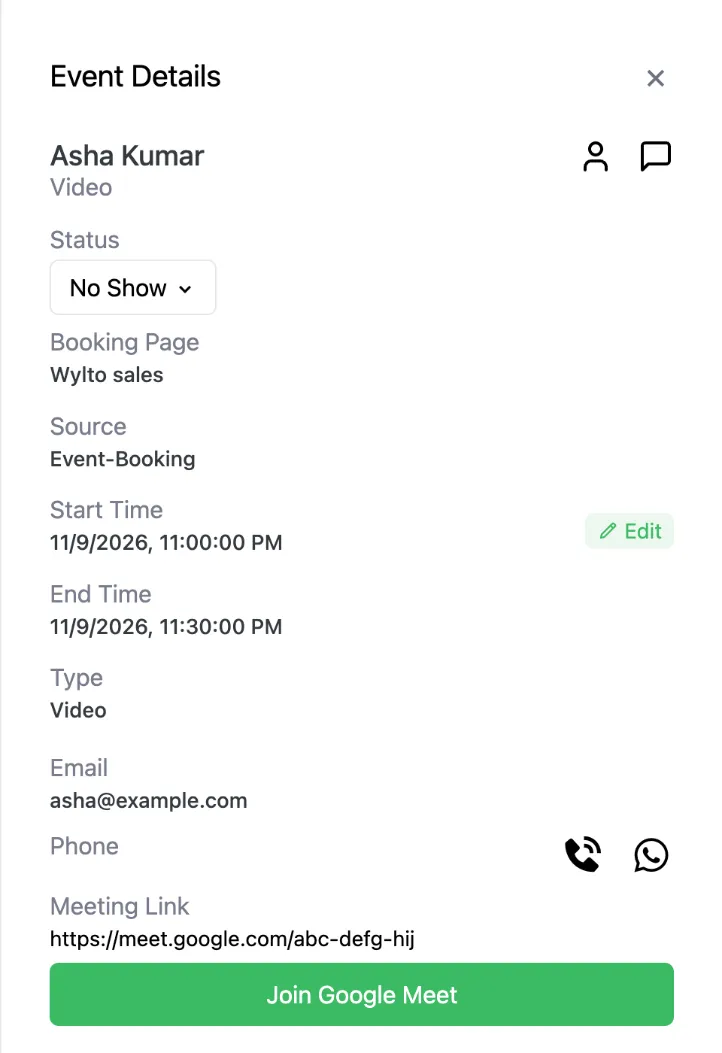
From here you can:
- change the Status (Scheduled, Completed, No show, Cancelled),
- Edit the time,
- call or WhatsApp the contact, or open their profile or chat beside the details,
- see which Booking Page it came from and join the meeting.
The same details open from the inbox: open the contact and go to their Events tab.
After the meeting
Section titled “After the meeting”Set the status to Completed. A Minutes of meeting box appears: note what was discussed, decisions and next steps, then save. The minutes show on the contact’s Events tab, so the next person talking to this customer has the context.
Changes from the customer
Section titled “Changes from the customer”The confirmation page and the calendar invite include Reschedule and Cancel links. Rescheduling only offers times when the same member is free.