
Shopify Setup
Connecting Shopify lets Wylto send WhatsApp messages when something happens to an order — placed, shipped, delivered, refunded — and chase the customers who left a cart behind or never confirmed a COD order.
No workflow is required for any of it. Every message is a toggle and a template.
Before you start
Section titled “Before you start”- A Wylto app with an active subscription and a connected WhatsApp Business number
- Admin access to the Shopify store you want to connect
- At least one approved WhatsApp template for each message you want to send — see Templates & Flows
Connect your store
Section titled “Connect your store”-
Open Shopify settings
Section titled “Open Shopify settings”In Wylto, go to Settings → Integrations → Shopify in the left sidebar.
-
Install the Wylto app on Shopify
Section titled “Install the Wylto app on Shopify”Follow the connect flow. Shopify will ask you to approve the permissions Wylto needs to read orders and apply tags.
-
Confirm the connection
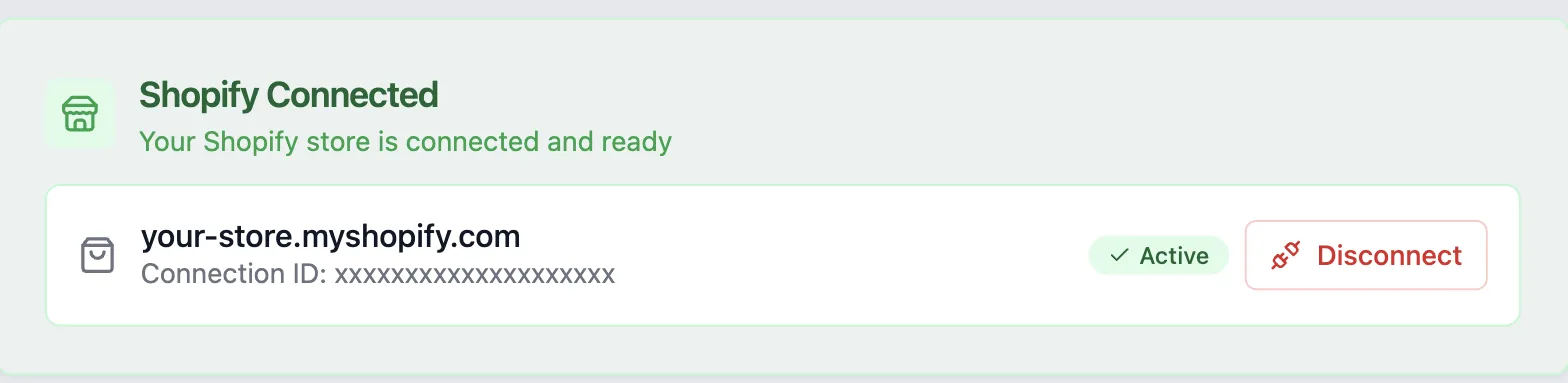
Section titled “Confirm the connection”Once it is done, the page shows your store as connected and active.
Order & contact settings
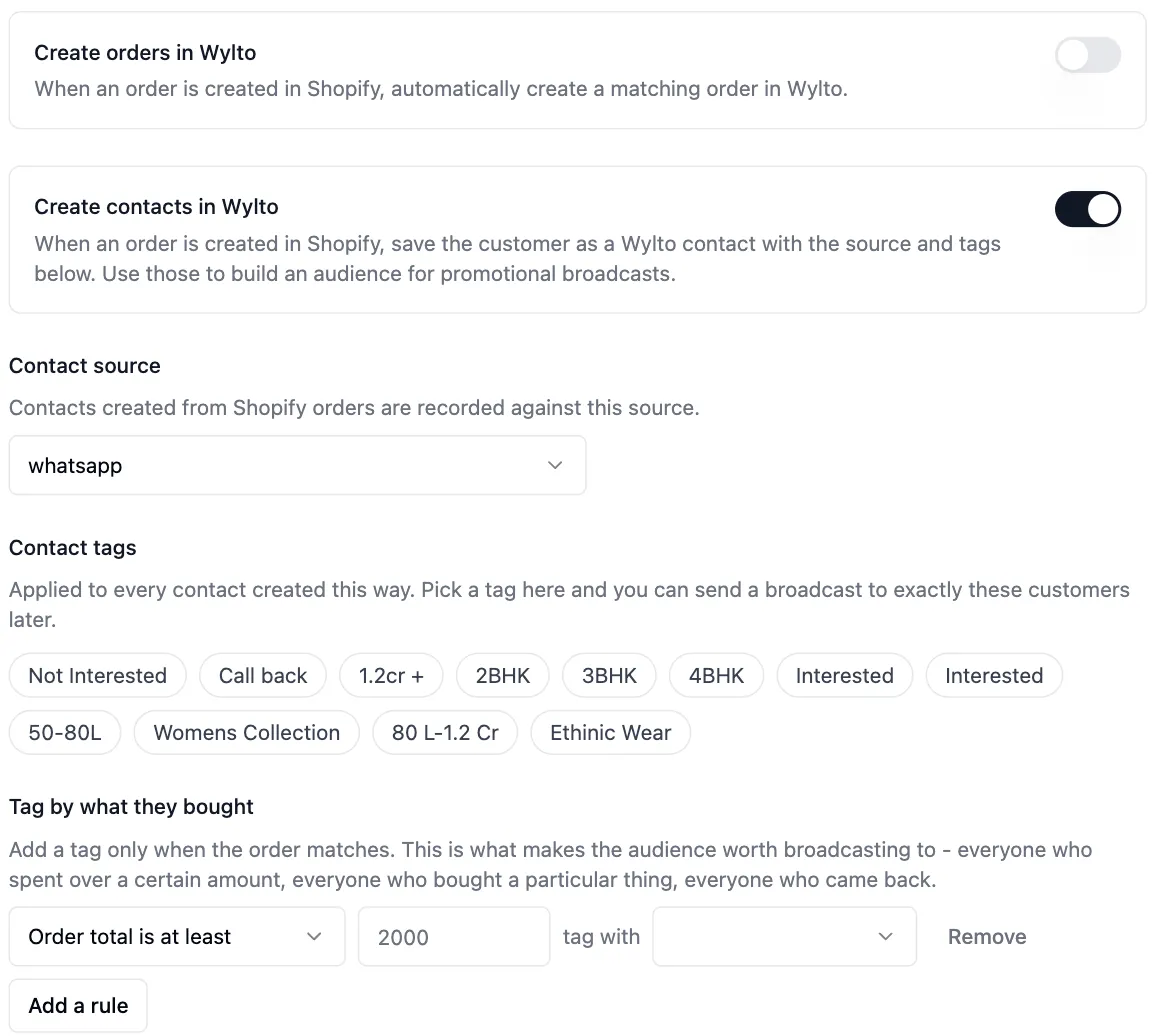
Section titled “Order & contact settings”At the bottom of the Shopify page you decide what Shopify data comes into Wylto. Both toggles are off by default and are independent of each other.
Create orders in Wylto
Section titled “Create orders in Wylto”When an order is created in Shopify, create a matching order in Wylto. Turn this on if you want to work orders inside Wylto. If you only want to message customers, leave it off — the notifications do not need it.
Create contacts in Wylto
Section titled “Create contacts in Wylto”When an order is created in Shopify, save the customer as a Wylto contact. This is what builds an audience you can broadcast promotions to later.
- Contact source — the source these contacts are recorded against, so you can tell Shopify customers apart from every other lead.
- Contact tags — applied to every contact created this way.
- Tag by what they bought — applied only when the order matches.
How the phone is picked and how repeat customers are matched is on Customers as Contacts.
Tag rules
Section titled “Tag rules”A rule is a condition, a value, and a tag. Add as many as you like.
| Condition | What it matches |
|---|---|
| Order total is at least | Orders at or above the amount you enter, in your store’s currency |
| A product name contains | Any line item whose name contains your text, ignoring case |
| They have ordered before | A returning customer |
| It is their first order | Their first order with your store |
So “order total is at least 5000 → tag High Value” gives you a segment you can broadcast a loyalty offer to, without anyone tagging a contact by hand.
What to set up next
Section titled “What to set up next”- Order Notifications — tell customers what is happening to their order
- Abandoned Cart — chase the people who left without buying
- COD Confirmation — confirm cash-on-delivery orders before you ship
- WhatsApp Metrics — see what all of it produced